NOTE: To be able to view the Assign File tab, the user must have the correct permissions. Only a user with Manager settings in the platform can change/edit who has the ability to "assign files" and "receive files".
For an interactive demo of the below instructions, click here.
Assigning files allows other users within the organization to see the file in their pipeline, receive order notifications and move the file to other users if necessary within a process.
- Only a manager can dictate who has permission to assign files to another user
- In the Coviance Platform, the manager needs to click on their name in the upper right corner
- Choose "My Company"
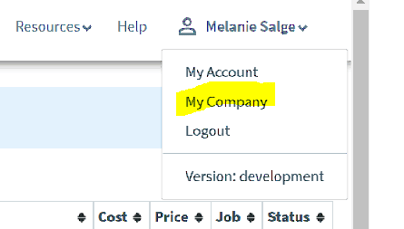
- Click on "File Permissions"
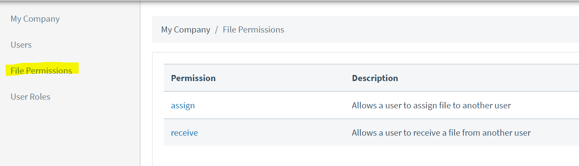
- Click on Assign and choose the employees who are allowed to assign files in the company
- Click on Receive and choose the employees who are allowed to receive assigned files and order products.
- Once that is completed, go to File Overview Screen and click on “Assign File” tab
- Choose name from dropdown and click Assign
- Exit file and now the new user should be able to order products for that file
